
You’ve probably installed Windows the wrong way your entire life. Let me show you the right way to do it. This method is faster and works the same as the usual method.
All the process for this article was made in a virtual machine to make it easier to take screenshots but i tested and it doesn’t work in the virtual machine without the proper drivers declared in WinNTSetup.

Before we begin with this i’ll assume you already know how to make a multibootable USB using ventoy and you’ve already have the Windows 10/11 iso ready. To begin with this method go to the Hiren’s Boot Website , go to the downloads page and download the HBCD_PE_x64.iso and put it in your multiboot usb drive (if you use an autounattend.xml file copy it too).
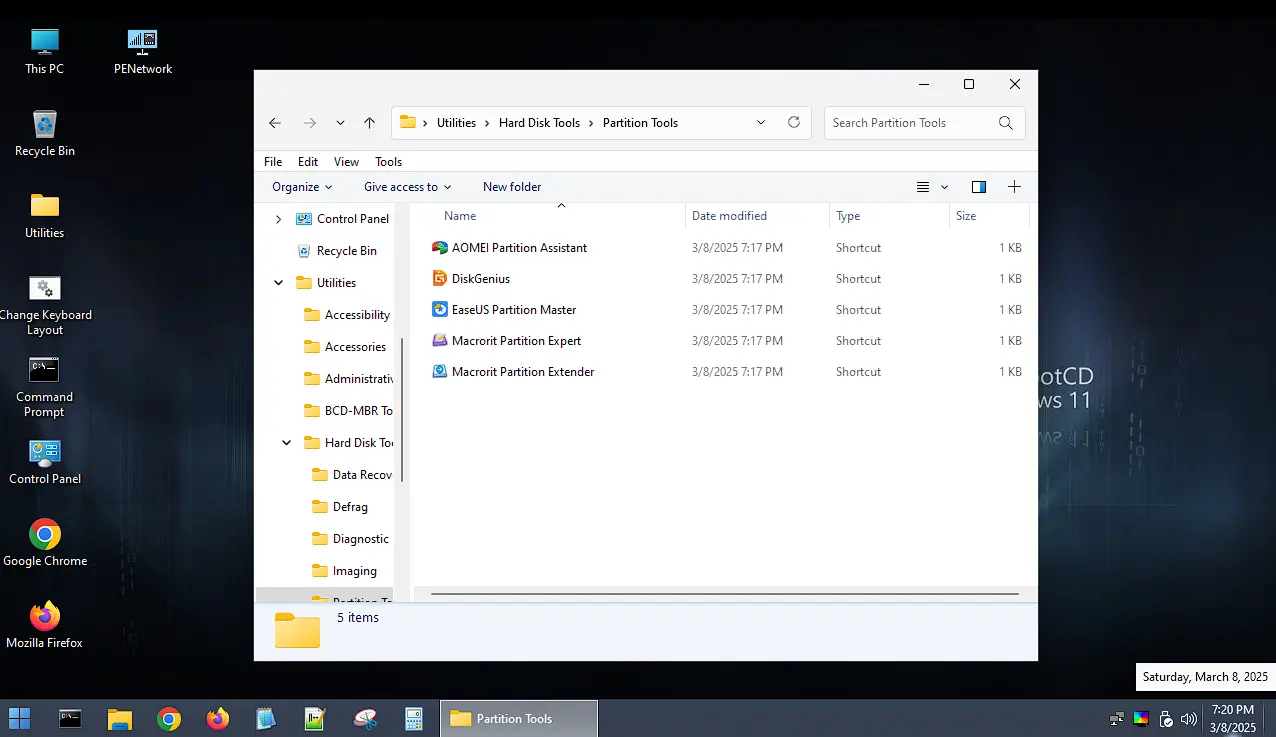
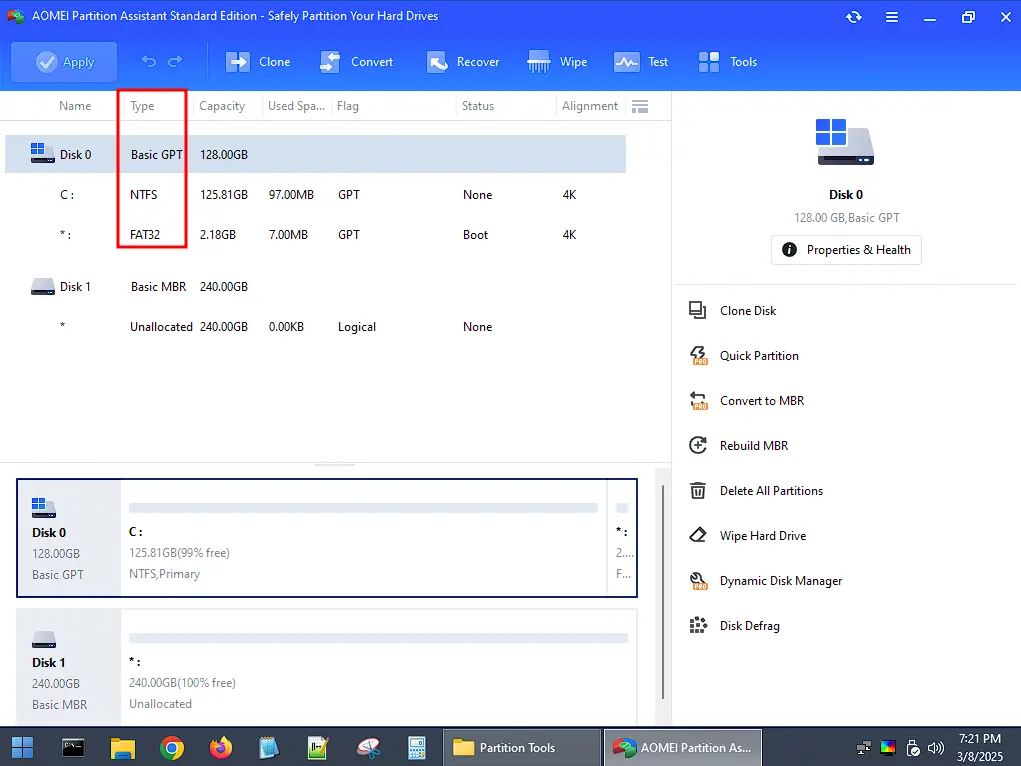
Boot into Hiren’s Boot and the first thing you wanna do is partition your ssd if you haven’t yet. In this case i’m in a virtual machine so i don’t have a main nor a boot partition so as you can see i made them with Aomei Partition Assistent (you don’t need a boot partition as big as mine, 500MB is more than enough) Make sure your main partition is an NTFS partition and your boot partition is FAT32.
Now after your partitioned your SSD let’s procede with the installation (you can close the partition tool you used). Open WinNTSetup.
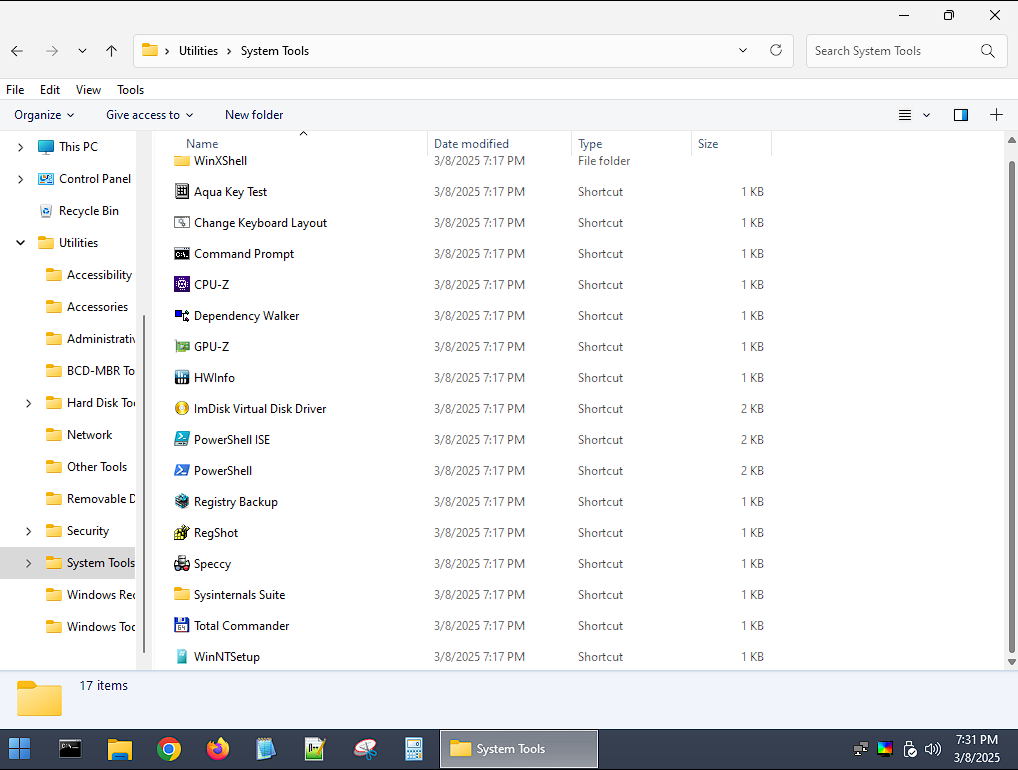
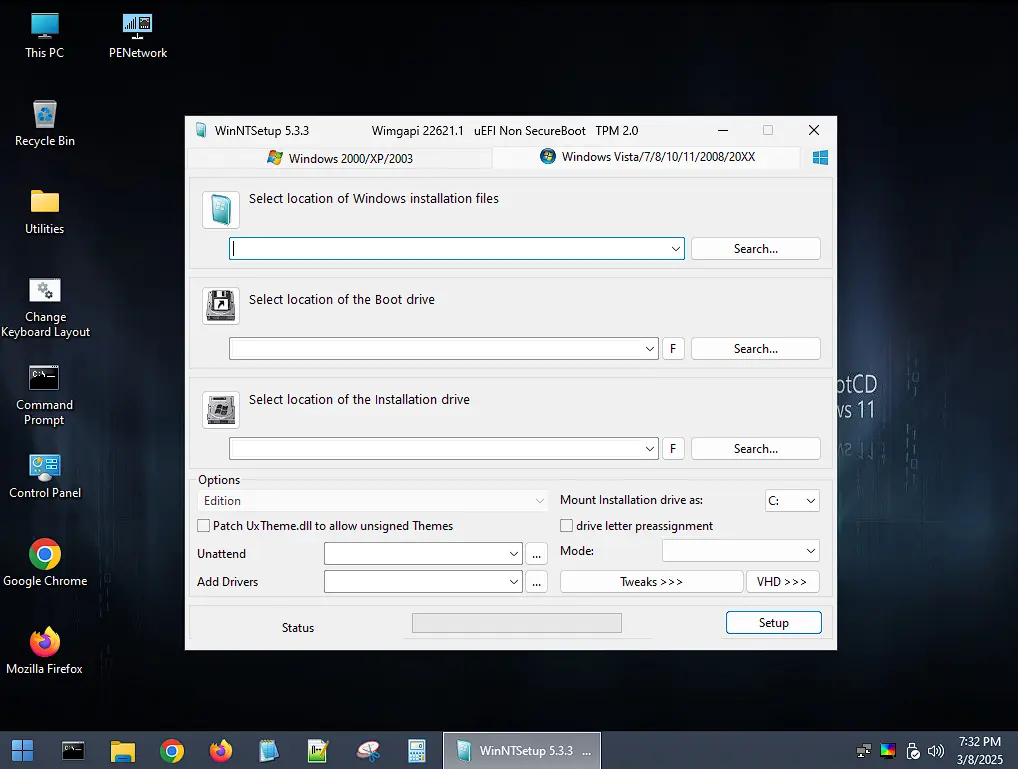
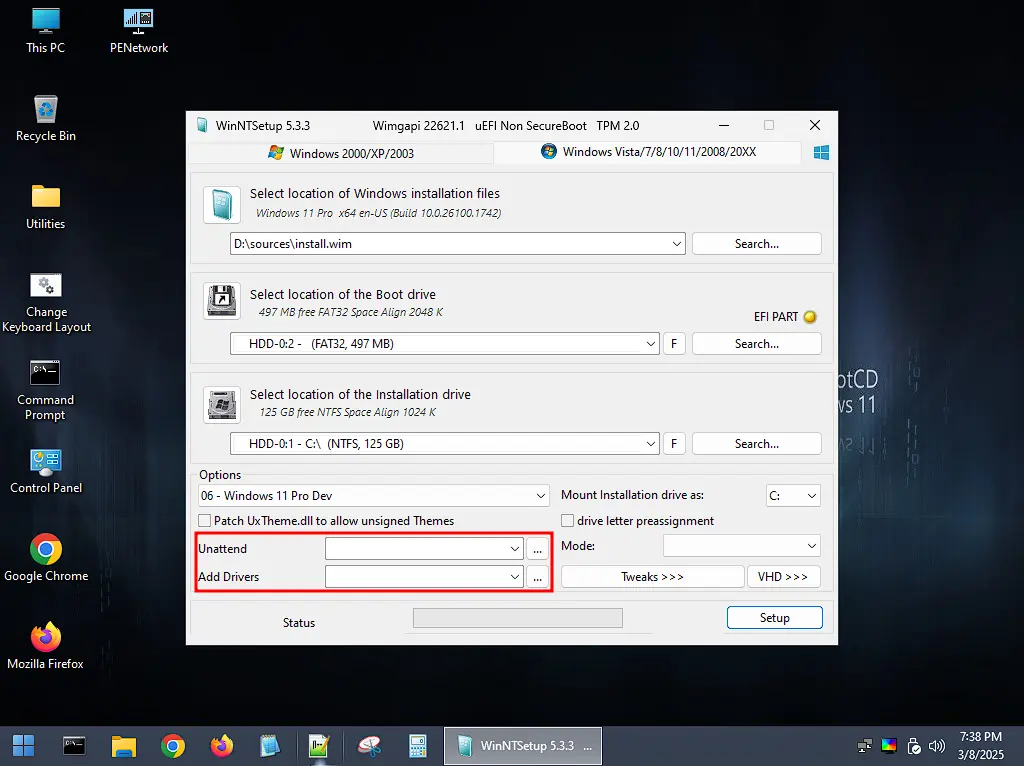
Now select your Windows iso/wim/esd file as i did here
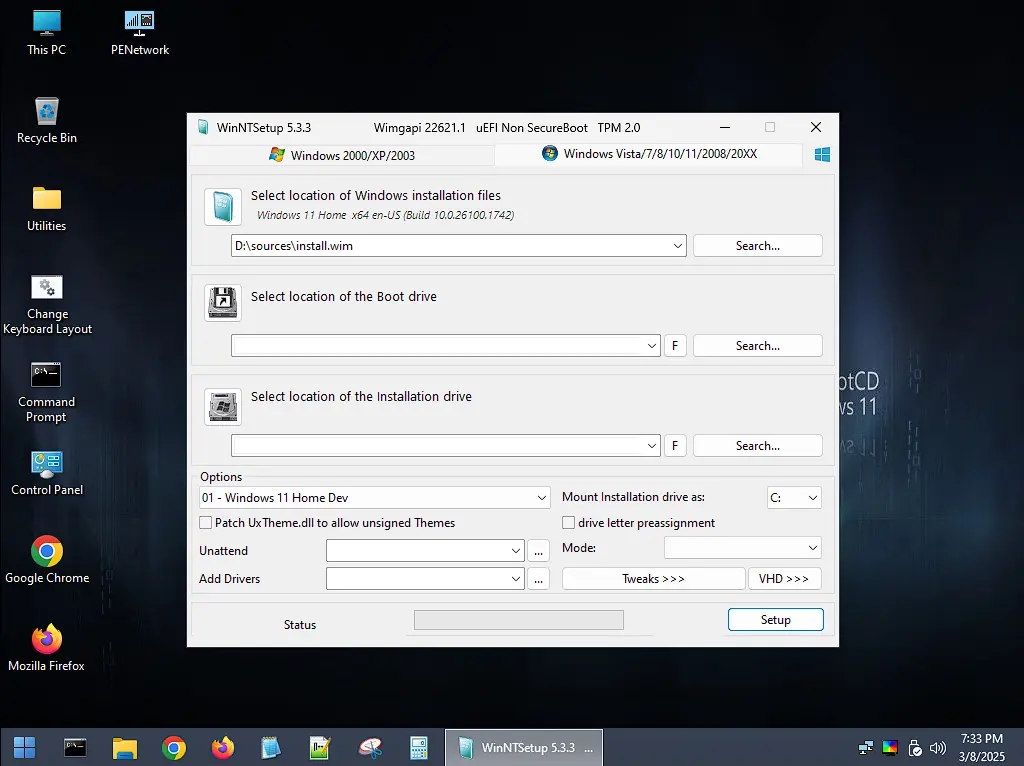
Now it’s time to select your boot partition (make sure you select the right one, click on the arrow, not on the browse button) also if you need to format that partition you can click on the ‘F’ next to it.
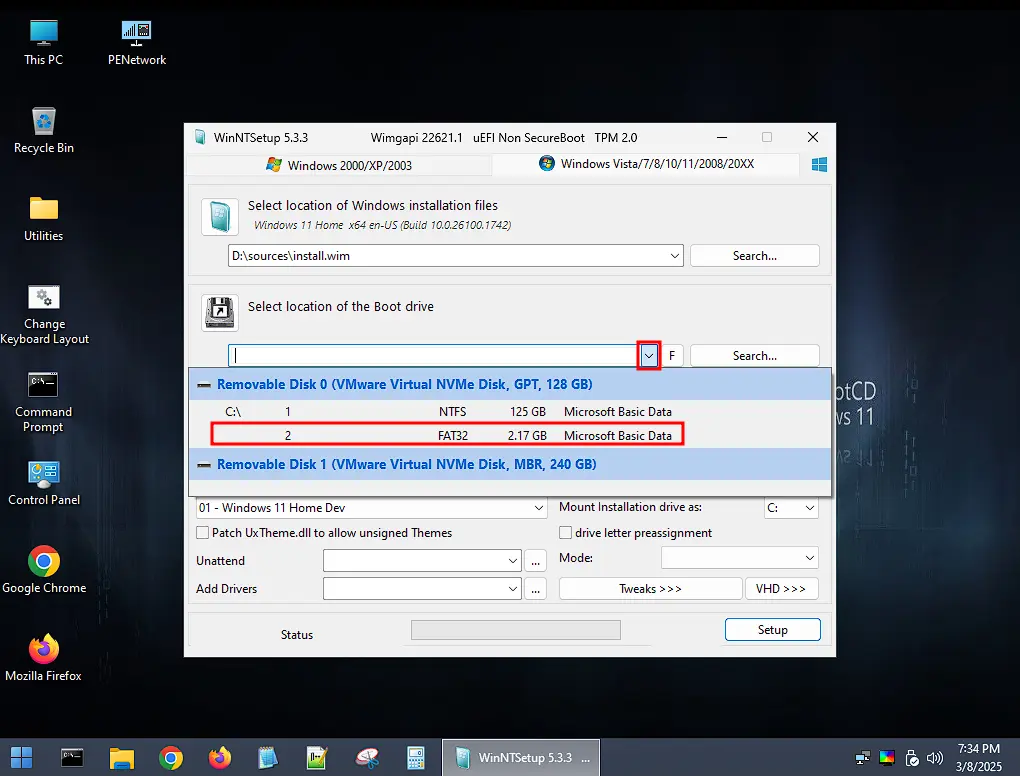
Now select your main partition(make sure you select the right one, click on the arrow, not on the browse button) also if you need to format that partition you can click on the ‘F’ next to it.
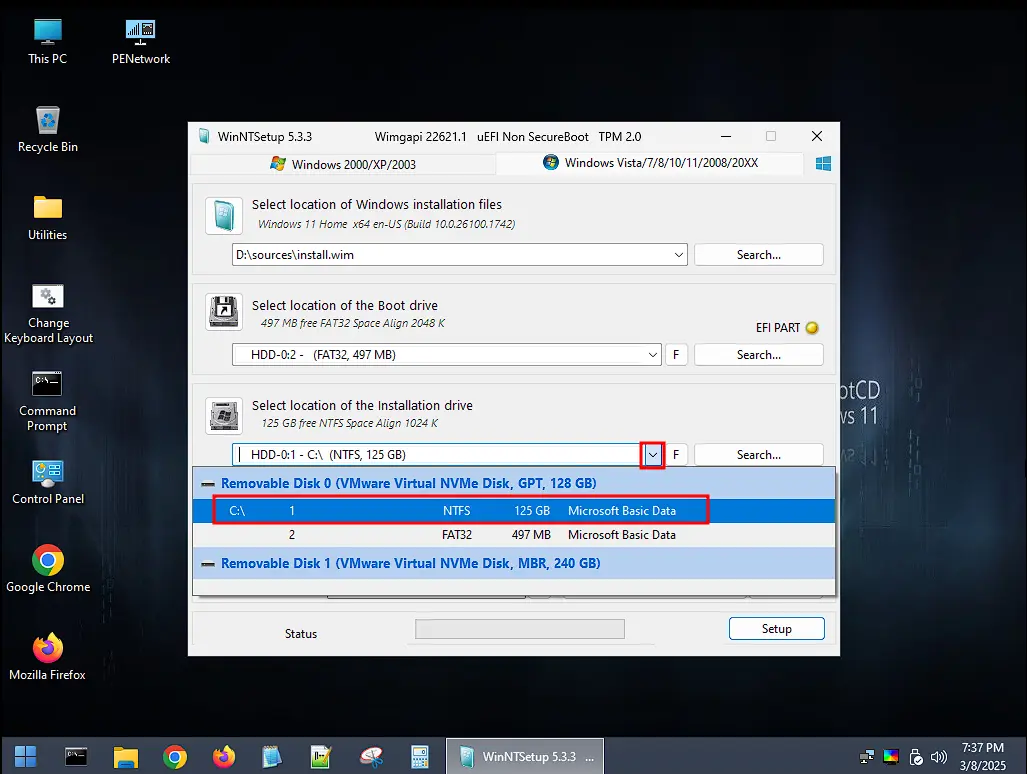
Now select the Windows edition you want to install, if your pc have a key in the UEFI firmware for a specific edition, select that edition (Ignore the DEV word)
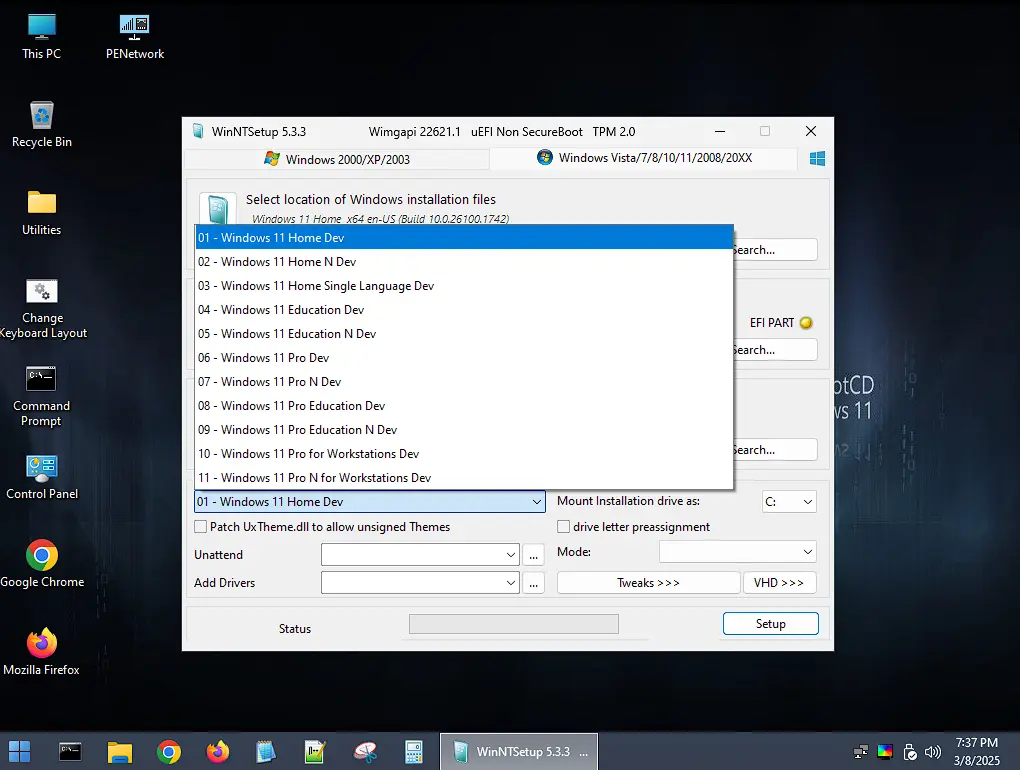
Now if you want an autounattended.xml file and or a driver folder to add add them here
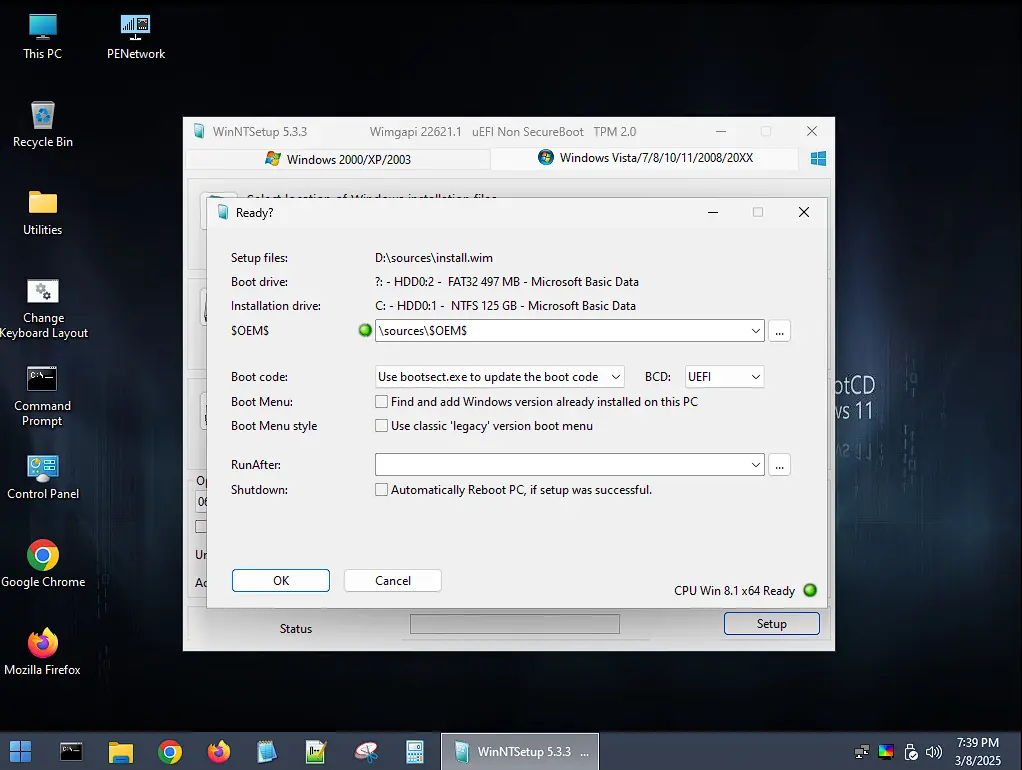
Click on the ‘Setup’ button and check if all the things are like this then confirm
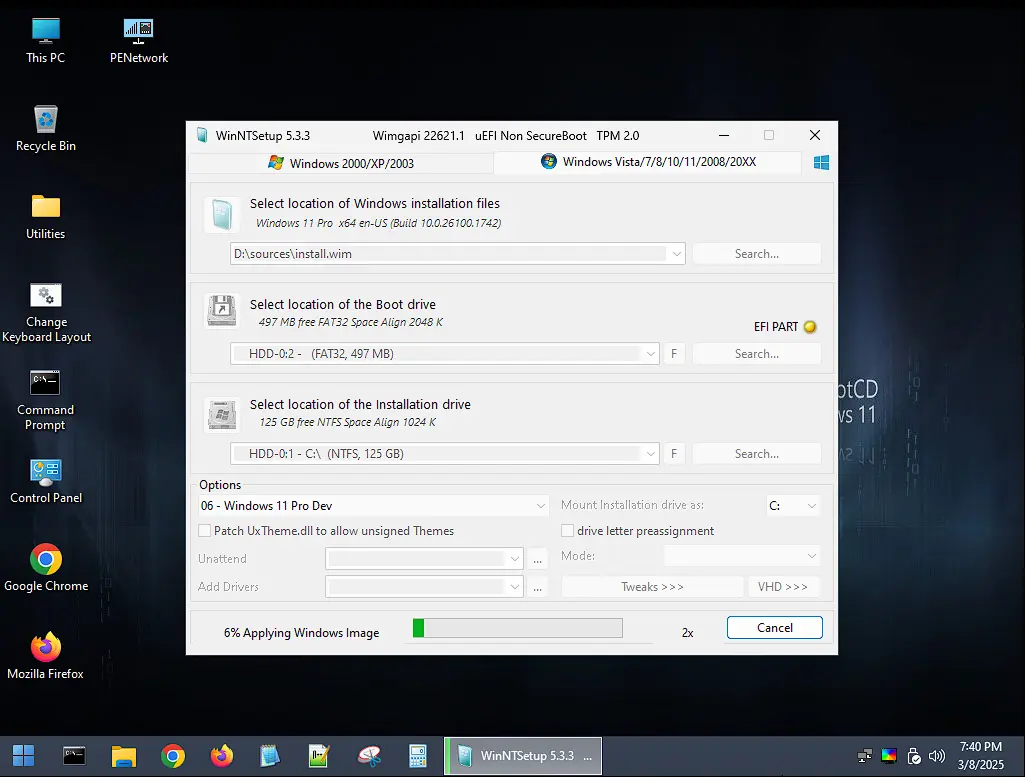
When it asks you to reboot, reboot and you should be in the oobe or directly on your desktop depending on your autounattended.xml if you used one
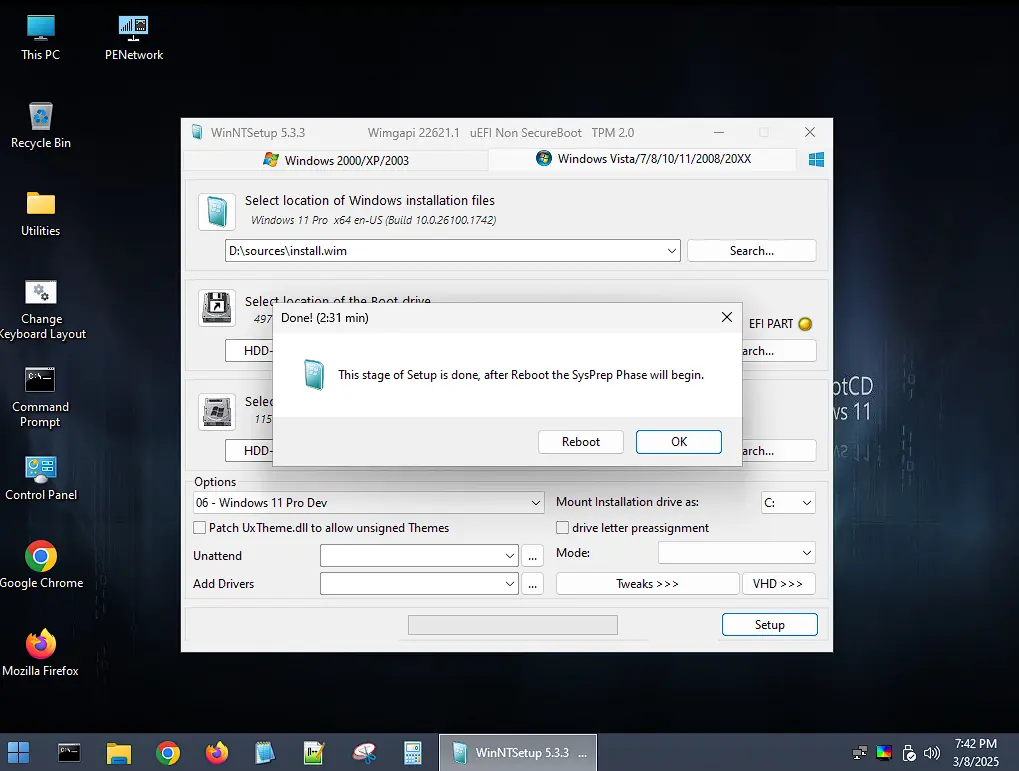
This method was way faster in my main machine, i have an nvme ssd and this method installed Windows in about 2 minutes compared to the 10 to 15 minutes of a regular instalation, i use an autounattended file for both methods anyway when i install Windows but this method is the fastest one. If you don’t like Hiren’s Boot, you can use DLC Boot, or Serguei Strelec or any other winpe graphical environment that has partition tools and WinNTSetup.